How to Check Sitemap XML Files for Flawless SEO Indexing

Before you can even begin to check sitemap XML files, you need to get one thing straight: a sitemap is your direct line to search engines. It’s how you tell them what content matters most on your site. For a large website, a healthy sitemap is non-negotiable for getting your pages discovered and indexed quickly.
Why Your Sitemap Is a Critical Roadmap for Google

Think of your XML sitemap as the official map you hand-deliver to Google. It's more than just a technical file; it’s a clear guide that helps search engine crawlers find, understand, and index your valuable pages. Without it, crawlers are left to wander your site by following links—a slow and often incomplete process.
A clean, accurate sitemap shows crawlers what you consider important, helps them find new pages faster, and lets them use your crawl budget wisely. This is absolutely vital for large-scale programmatic SEO projects, where you might have thousands of pages that need to be found right away. To really get why this matters, you need a solid grasp of what is website indexing and how search engines work behind the scenes.
The Real Cost of a Faulty Sitemap
A broken sitemap isn't a small problem. It can lead to serious issues, from massive indexing delays to wasted crawl resources. If search engines find errors or outdated links, they might just stop trusting the file entirely, leaving your best pages invisible.
This happens more often than you'd think. In fact, a recent analysis found that a staggering 23% of German websites in 2025 failed to even link their XML sitemap in the robots.txt file, effectively hiding their map from search engines.
A sitemap isn't just a list of URLs; it's a statement of intent. It tells Google, "This is my quality content—please prioritise it." Neglecting it is like sending a delivery driver to an unmarked building.
For sites with a huge number of pages, a sitemap index file is the way to go. This "sitemap of sitemaps" breaks your content down into smaller, more manageable files, which is much easier for crawlers to process.
This structure stops a single sitemap from becoming bloated and helps Google understand your site's architecture more efficiently. Getting this right is a fundamental part of any serious SEO strategy. We cover this in more detail in our guide on XML sitemaps for programmatic SEO.
How to Find and Manually Inspect Your Sitemap
First things first, you can't check what you can't find. Luckily, tracking down your sitemap is usually pretty simple since most sites stick to a common convention.
Just pop your domain into a browser and add /sitemap.xml to the end. That’s often all it takes.
If nothing shows up, don't sweat it. Try /sitemap_index.xml next. This is a big one for larger sites, especially programmatic SEO projects, where a "sitemap of sitemaps" is used to keep things organised. It’s a best practice that points to all the smaller, more manageable sitemaps.
The Definitive Way to Find Your Sitemap
While trying common URLs is a good first guess, there’s a much more reliable way: check your robots.txt file. This little text file, always found at yourdomain.com/robots.txt, is the instruction manual for search engine crawlers.
One of its jobs is to officially declare the sitemap's location. Just open the file and scan for a line starting with Sitemap:. The URL that follows is the exact address you need. This is how search engines are designed to find it, so it's the most accurate method there is.
What to Look for in a Manual Inspection
Once you’ve got your sitemap open, it might look like an intimidating block of code. But you don’t need to be a developer to spot obvious problems. The goal here is a quick visual sanity check for any red flags that could confuse search engines.
Here’s what you should scan for:
- Proper XML Formatting: Does the page load cleanly as a structured document, or do you see a jumbled mess or an error message? A healthy sitemap has neat
<url>and<loc>tags for every entry. If it looks broken, that's your first clue something is wrong. - Only Final, Indexable URLs: Your sitemap should be a VIP list of your most important pages. It absolutely should not include URLs that redirect, return errors like a 404, or point to non-canonical versions of a page. Every URL must be the final, definitive version you want in the search results.
- No Blocked Pages: Do a quick cross-reference with your
robots.txtfile. If a URL is in the sitemap but is also listed as disallowed inrobots.txt, you're sending Google completely contradictory signals.
A manual check is your first line of defence. It’s a quick, tool-free way to catch obvious errors that can seriously impact your site's ability to be crawled and indexed correctly. Taking five minutes to do this can save you hours of troubleshooting later.
For instance, a classic mistake is listing yourdomain.com/about-us/ in the sitemap when the true canonical URL is yourdomain.com/about/. This kind of sloppy mistake dilutes your SEO signals. To get a better sense of how Google sees individual URLs, our guide on using the URL Inspection tool is a great next step. Catching these simple errors by hand is a crucial first step before you even think about firing up automated tools.
Using Free Tools for a Deeper Sitemap Audit
While a quick manual scan is good for catching obvious blunders, it's really just scratching the surface. To get the full picture of your sitemap’s health, you need to use the same kind of tools the search engines themselves rely on. This is where automated validation becomes your best friend, giving you a proper diagnostic report.
Google Search Console is, without a doubt, the most important tool in your kit. It’s Google’s own platform, so the feedback you get is as direct and honest as it comes. Submitting your sitemap is easy enough, but the real skill lies in correctly interpreting the reports it gives you back.
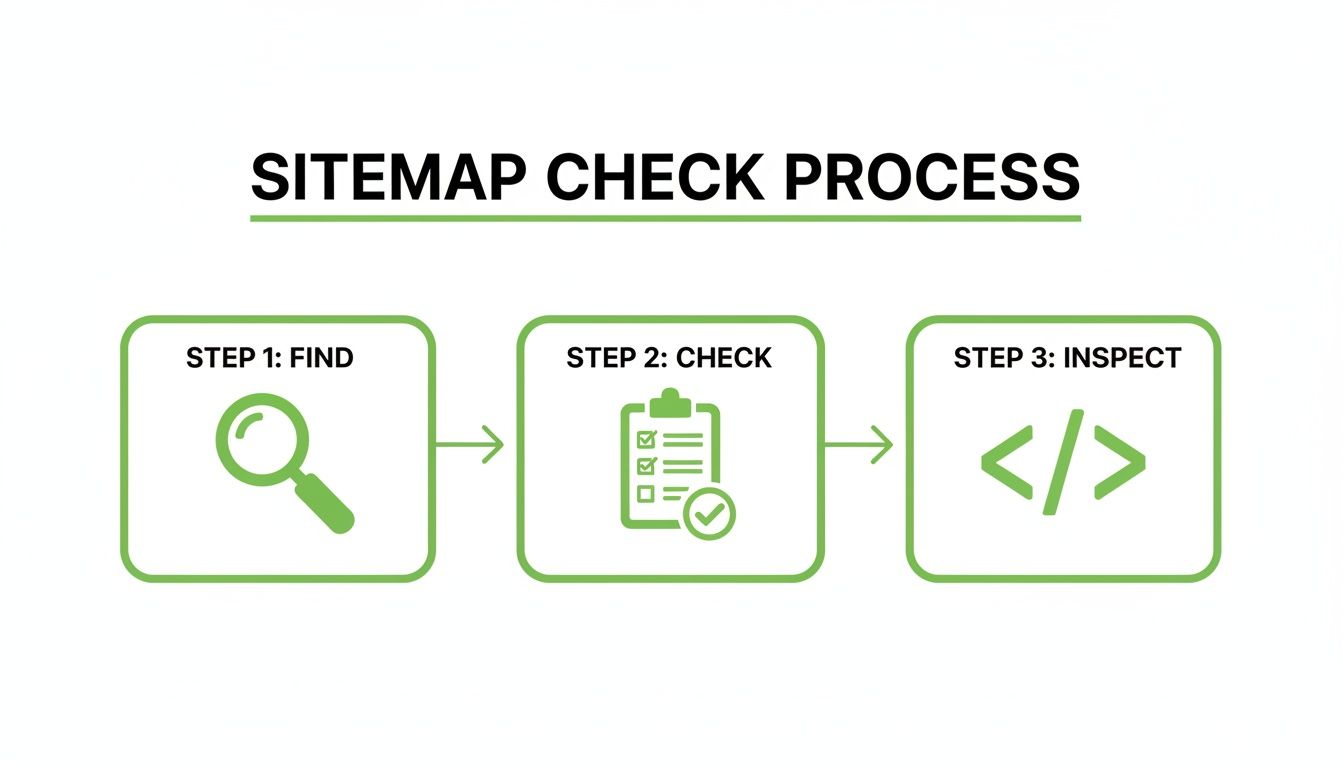
Stick to this simple "find, check, and inspect" workflow. It creates a systematic loop for finding and squashing any potential crawling problems before they get out of hand.
Decoding Google Search Console Reports
After you’ve submitted your sitemap in Search Console (you'll find it under the "Sitemaps" report), Google gets to work processing it and will eventually report back with a status. Knowing what these statuses mean is critical.
The "Status" column is what you need to focus on. It tells you instantly whether Google could process your file or if it hit a snag.
Here’s a breakdown of the common statuses you'll see:
- Success: This is the one you’re hoping for. It means Google fetched and processed your sitemap without any show-stopping formatting errors. It doesn't mean every single URL will get indexed, but it confirms the file itself is technically solid.
- Has errors: This demands your immediate attention. Google found problems inside the file that stopped it from being fully processed. Click into the sitemap report to see the specific issues, like invalid URLs or compression errors, that you need to sort out.
- Couldn’t fetch: This points to a more fundamental problem. Google couldn't even get to your sitemap file. This is usually down to server errors (like 5xx codes), a
robots.txtfile blocking access, or just an incorrect URL path.
A "Success" status is a green light, but it isn't the finish line. Google might still decide not to index certain pages if it thinks they're low-quality or duplicates. You'll usually spot these kinds of issues later in the "Pages" report.
Common Sitemap Errors and How to Fix Them
When Search Console flags an error, it's often one of a handful of common culprits. Here’s a quick guide to help you troubleshoot.
| Error Type | What It Means | How to Fix It |
|---|---|---|
| Invalid URL | A URL in the sitemap is malformed (e.g., contains spaces, uses the wrong protocol like htp://). |
Double-check the URL format. Ensure all URLs start with http:// or https:// and are properly encoded. |
| Unsupported Format | The sitemap file isn't a valid XML file. It might have syntax errors or be compressed incorrectly. | Use an XML validator to find the syntax error. If it's a gzipped file, ensure the compression is correct. |
| Path Mismatch | The sitemap is located in a directory that is not a parent or the same level as the URLs it contains. | Move the sitemap file to the root directory of your website to cover all URLs on the domain. |
| Empty Sitemap | The sitemap file was found but contains no URLs. | Check the process that generates your sitemap. Make sure it's actually discovering and adding URLs to the file. |
| HTTP Error [5xx] | Google tried to fetch the sitemap but your server returned a server error (e.g., 500, 503). | Check your server logs to diagnose the issue. It could be a temporary problem or a more serious server-side bug. |
Fixing these promptly is key to keeping your site’s crawling and indexing process running smoothly.
Leveraging Third-Party Validators
Search Console is non-negotiable, but it shouldn't be the only tool you use. Third-party XML sitemap validators can often give you a much more detailed breakdown and catch subtle issues that Google’s tool might not flag straight away.
We've put together a list of our favourite free tools for programmatic SEO that can help you with this.
These external tools are especially good for checking things like:
- Strict XML Schema Compliance: Making sure your file follows the official sitemap protocol down to the letter.
- Character Encoding Issues: Finding problems with special characters that could trip up some crawlers.
- URL-Level Checks: Some validators will even crawl every URL in your sitemap to check its HTTP status code, helping you find broken links or redirects before Google does.
For a really robust audit, you should use both Search Console and a trusted third-party tool. This process is a core part of any complete site health check, as outlined in this Master Framework for Technical SEO Audits. This two-pronged approach ensures no technical error slips through the cracks, giving your content the best possible chance of getting discovered and indexed.
Solving Common Errors That Hurt Your SEO Performance

Spotting an error in Google Search Console isn't the finish line; it’s the starting pistol. The real work is digging in and fixing the underlying issues that are confusing search engines and tanking your SEO. A sitemap littered with bad URLs is like a town map full of dead-end streets—it wastes time, erodes trust, and squanders resources.
Every time a crawler follows a sitemap link and hits a redirect (3xx), a broken page (4xx), or a server hiccup (5xx), it chips away at your crawl budget. This means Google’s bot might just give up before it ever finds your most important new content, leaving it completely undiscovered.
Tackling Redirects and Broken Links
The most common culprits are old URLs that now redirect somewhere else. When you include these, you're telling crawlers to go to one place, only to immediately send them somewhere else. It's wildly inefficient and sends confusing signals about which URL is the canonical one.
Recent German SEO audits in 2025 found that over 17% of websites had sitemaps clogged with redirects, a simple mistake that can stall indexing. You can check out more findings about common SEO mistakes on seranking.com. The fix is straightforward but critical: always replace the old, redirecting URL in your sitemap with its final destination URL.
Similarly, 404 "Not Found" errors are poison. Each one is a dead end that wastes a crawler's limited time. You have to get into the habit of regularly crawling your sitemap URLs to hunt down and remove any that return a 404 or any other error code.
Your sitemap must be a pristine, curated list of your best, final, and accessible pages. Think of it as your site's VIP list. If a URL isn't a final destination worth indexing, it has no business being there.
Managing File Size and URL Limits
Another classic, easily avoidable issue is a sitemap that's just too big. Google has hard limits: a single sitemap file can’t have more than 50,000 URLs or be larger than 50MB uncompressed. Go over those limits, and Google might stop processing the file partway through, completely ignoring thousands of your pages.
For large or programmatic sites, the answer is a sitemap index file. This file acts as a table of contents, pointing crawlers to multiple smaller, more manageable sitemaps.
- Split by Section: Create individual sitemaps for different site areas (e.g.,
products-sitemap.xml,blog-sitemap.xml). - Split by Date: For huge archives, organise content by year or month.
- Split by Number: Just break your list into numbered files when you get close to the limit.
This organised approach doesn't just keep you within the limits; it makes diagnosing problems much faster. Finding an error in one small sitemap is a world easier than hunting for it among 49,000 other URLs. It also helps you avoid issues like index bloat where low-quality pages clutter your site's presence in search results.
Ultimately, the most important thing is to make sure your sitemap is dynamic. It should update automatically whenever you publish new content, change a URL, or delete a page. A static, out-of-date sitemap is often worse than no sitemap at all. Set up a process to regenerate it daily or weekly to keep it perfectly in sync with your live site.
Sitemap Strategies for Large and Programmatic Websites

Managing a sitemap for a handful of pages is simple. But when your site has thousands of pages created with programmatic SEO, manual updates are impossible. This is where automation isn't just a "nice-to-have"; it's the only way to succeed. The goal is to create a 'living' sitemap that automatically updates as your content changes, telling search engines what to crawl without any manual work.
For any large-scale project, the standard sitemap.xml won't be enough. You'll need a sitemap index file—a "sitemap of sitemaps." This keeps you under Google's 50,000 URL limit per file and organizes your site logically. You can learn how to build a sitemap index for your programmatic SEO projects in our detailed guide.
Building Your Programmatic SEO Machine with AI
The core of programmatic SEO is automation. Instead of writing every article by hand, you create a template and use a dataset to generate hundreds or thousands of unique pages automatically. AI has made this process more powerful and accessible than ever. Here’s a simple, practical way to do it:
- Get Your Data: Start with a good dataset. For a real estate site, this could be a spreadsheet with columns for
City,Average Price,Number of Schools, andNeighborhood Type. For a software review site, it might beSoftware Name,Key Feature,Pricing, andBest For. - Create a Page Template: Design a single page template. This is the blueprint for all your future pages. It will have placeholders for your data, like
<h1>Homes for Sale in {City}</h1>and<p>The average home price is {Average Price}.</p>. - Use AI to Write the Content: This is where it gets powerful. Use an AI tool like GPT-4 or an API to generate the text. Your prompt can be as simple as: "Write a 200-word paragraph about the real estate market in {City}, highlighting that the average price is {Average Price}." The AI will use the data from your spreadsheet to create unique text for each city.
- Automate Page Creation: Use a script or a no-code tool (like Zapier or Whalesync) to connect your dataset, your AI model, and your website's content management system (CMS). The process works like this: the script takes a row from your spreadsheet, sends the data to the AI to generate content, and then automatically creates a new page on your website using the template.
- Automate Your Sitemap: As each new page is created, your system should automatically add its URL to the correct sitemap file. This ensures Google discovers your new content almost immediately.
Your goal is to create a hands-off content engine. You feed it data, and it outputs fully optimized, AI-written pages and an updated sitemap, all without you lifting a finger. This is how you scale from 10 pages to 10,000.
This approach lets you create high-quality, targeted content at a scale that's impossible to do manually. And because the sitemap updates automatically, you're giving search engines a perfect, real-time map of your growing site.
Your Top XML Sitemap Questions, Answered
To wrap things up, let's clear the air on some of the questions that pop up all the time when you're digging into sitemap files. These are the quick-fire answers to solve any lingering doubts.
How Often Should I Check My XML Sitemap?
For most sites, a quick check-in through Google Search Console once a month is plenty. It’s enough to keep a pulse on things and spot any new problems before they fester.
But, if you're deep into a programmatic SEO build or you’re publishing content at a high volume every day, you’ll want to bump that up to a weekly check. It’s just smarter. And of course, you should always re-check your sitemap right after any big site change—think platform migrations, a complete redesign, or a massive content overhaul.
What Is the Difference Between HTML and XML Sitemaps?
This one trips a lot of people up, but it's simple. An HTML sitemap is for people. It’s just another page on your website, designed with a list of links to help your human visitors navigate and find what they're looking for.
An XML sitemap, on the other hand, is built purely for search engine crawlers. It's a technical file, written in a very specific format, that gives them a clean, efficient list of every URL you want them to find and index. It's not meant for human eyes.
Does a Perfect Sitemap Guarantee Indexing?
No, but it gets you a whole lot closer. Think of it this way: a flawless, error-free sitemap is like giving a delivery driver a perfect map and highlighting the most important stops. You’ve removed all the technical roadblocks and told Google exactly which pages matter.
But Google’s final decision to index a page also hinges on other big factors like your content quality, internal linking structure, and your site's overall authority. Your sitemap gets you to the front door; your content quality is what gets you invited inside.
A sitemap ensures your pages are eligible for indexing by making them easy to find. The content on those pages is what makes them worthy of indexing.
Why Are My URLs Discovered but Not Indexed?
Seeing this in Search Console is one of the most common frustrations in SEO. It means Google has found your pages—most likely from your sitemap—but has decided not to add them to its index just yet. This is almost always a quality signal, not a technical access problem.
The best next step is to use the URL Inspection Tool on a few of those pages. You'll usually find the culprit is one of these:
- Thin or Duplicate Content: The page just doesn't offer enough unique value.
- Poor Internal Linking: The page is an "orphan," with few or no links pointing to it from other important pages on your site.
- Perceived Low Value: Google’s algorithm has looked at the page and decided it doesn't meet a user's needs well enough to earn a spot in the search results.
Ready to scale your content strategy with confidence? At Programmatic SEO Hub, we provide the guides, tools, and systems you need to master programmatic SEO and GEO. Explore our resources today at https://programmatic-seo-hub.com/en.
Related Articles

Landing Pages SEO A Practical Guide to Rank and Convert
When we talk about SEO for landing pages, we're not just talking about general website optimisation. We're getting hyper-specific. This is the art of building and refining standalone pages...

Landing Page SEO: A Practical Guide to Higher Conversions
Landing page SEO is all about getting a single, focused web page to rank in search engines for a specific keyword. The goal? To drive a clear action, like a sale, a download, or a sign-up. It's a...

Your Ultimate Guide to Page Sitemap XML for Programmatic SEO
Think of a page sitemap XML as a direct line of communication with search engines. It’s essentially a neatly organised list of all the important pages on your website, designed to help crawlers like...